
Getting Started with Menlo Cloud
As a new team member at Menlo, you'll need access to our internal GPU cloud for development, CI/CD, and training workloads. This guide walks you through getting access and launching your first GPU instance.
Menlo Cloud is an internal platform purpose-built for our team and affiliated open source projects like Jan and llama.cpp.
Prerequisites
- A Menlo email account (
@menlo.ai) - Approval from Infra team for GPU access
Accessing the Dashboard
Menlo Cloud uses the Skyline dashboard for managing instances, volumes, and workloads.
Step 1: Visit the Dashboard
Navigate to our internal Menlo Cloud domain (check the Infra Wiki for the URL).
Step 2: Log In
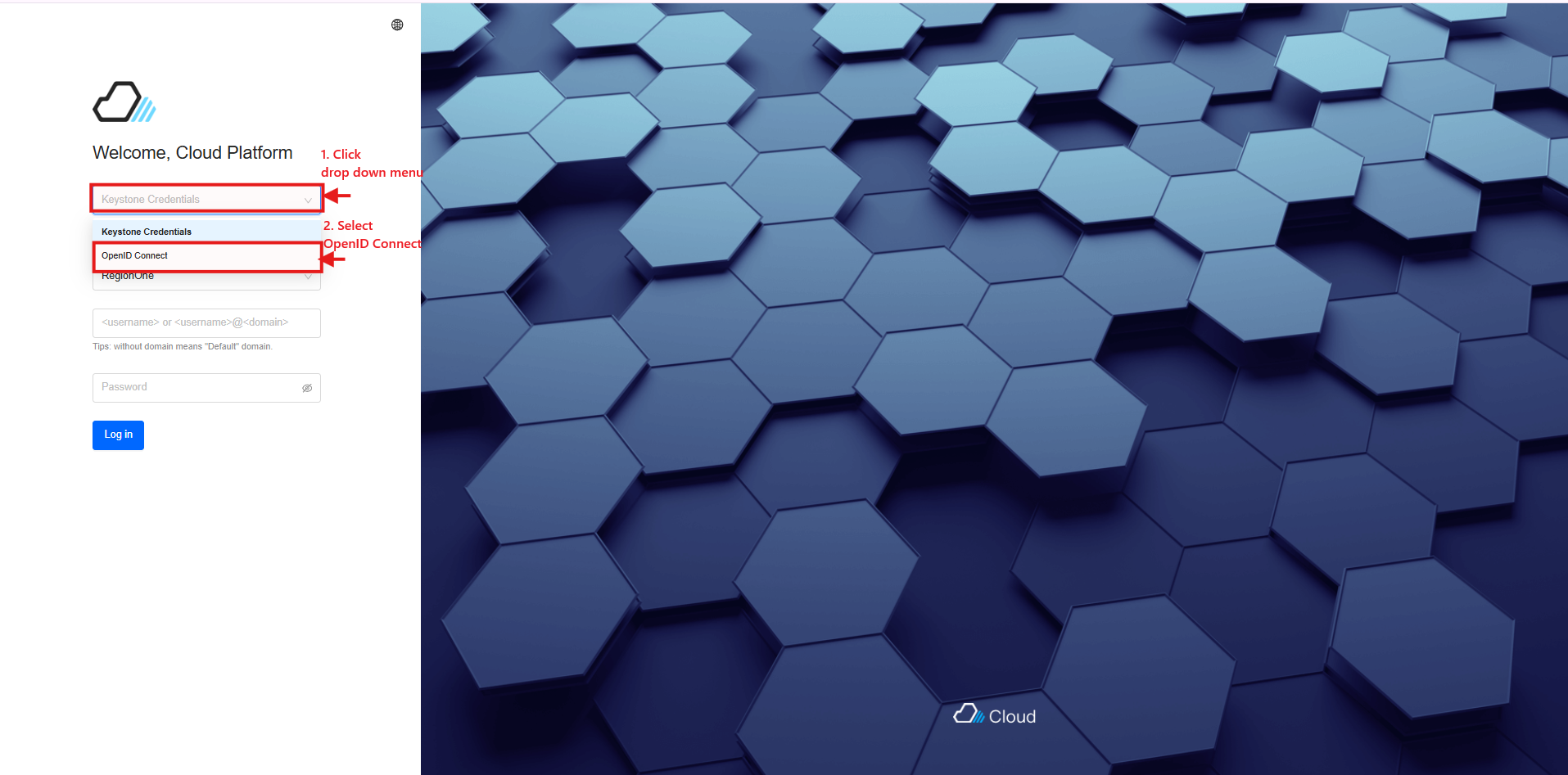
On the login page:
- In the top-right corner, open the dropdown labeled Keystone Credentials
- Select OpenID Connect
- Click Login

Step 3: Authenticate with Google
On the identity provider screen:
- Select accounts.google.com
- Sign in with your @menlo.ai email
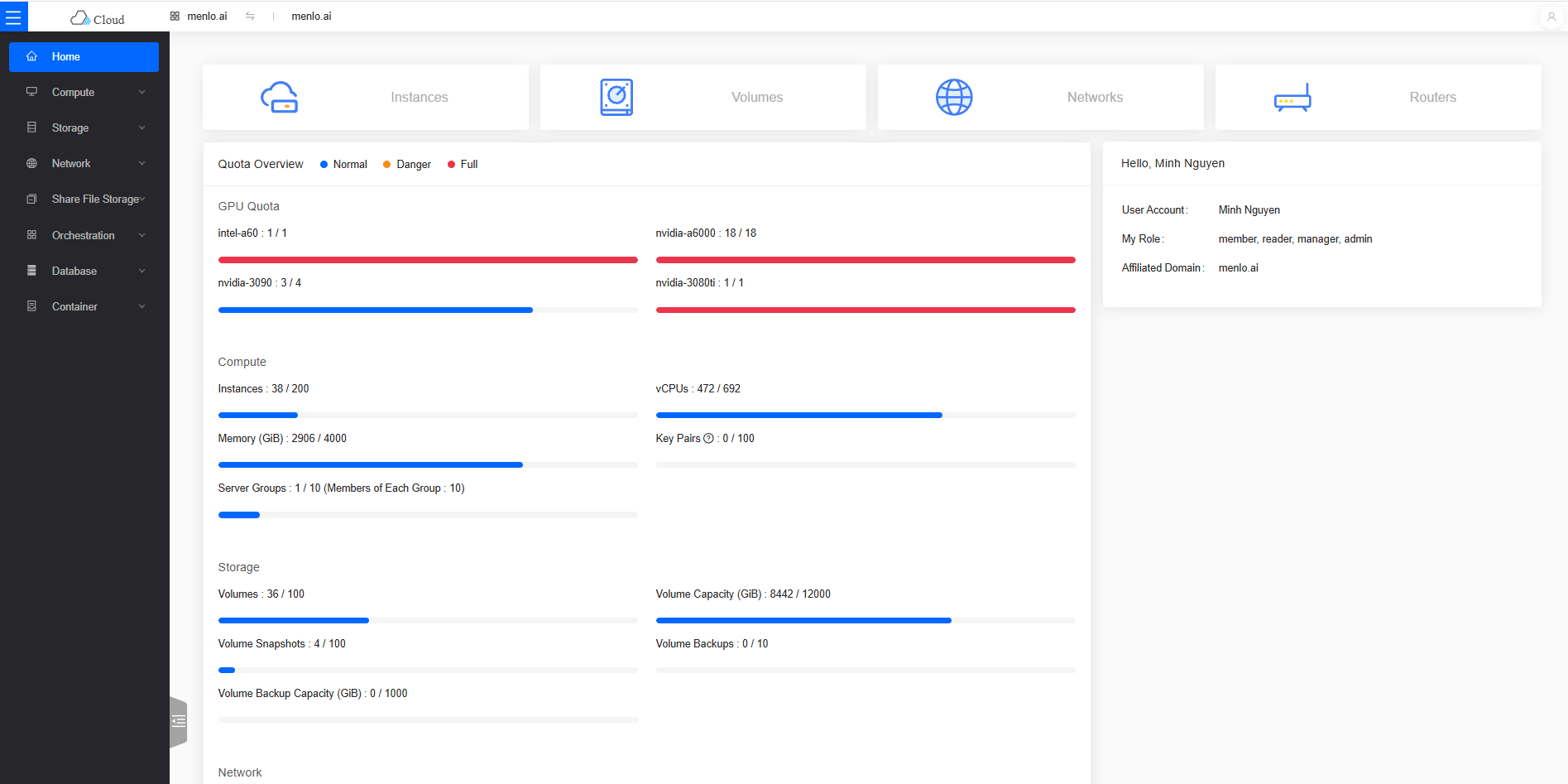
Step 4: You're In!
You'll be redirected to the Skyline Dashboard. This is your control panel for all cloud operations.
Launching Your First GPU Instance
For detailed step-by-step instructions on launching workstations, training clusters, or GPU instances, refer to the Infra Wiki. It covers troubleshooting, best practices, and common configurations.
The Infra Wiki covers:
- Choosing the right GPU instance type for your workload
- Setting up persistent volumes for storage
- Configuring networking and security groups
- Monitoring usage and costs
Need Help?
- Slack: Post in
#infrafor questions about Menlo Cloud - Issues: Report problems via the Infra Wiki's issue tracker
Remember: Menlo Cloud is internal infrastructure. Always follow our security guidelines when handling sensitive data or deploying workloads.